Overview
A SmartSimple dedicated server is a private and exclusive hosting environment, employed by organizations for high-performance management of their SmartSimple instances. This solution offers maximum control over system configurations, enhanced security, and the capability to manage custom, high-volume data without sharing resources.
DNS Configuration
A dedicated SmartSimple server is initially accessed via its IP address until the appropriate DNS entries are configured.
Accessing the server solely by its IP address can complicate the management of multiple instances created on the server and may also make it difficult for users to remember the address when attempting to access the server.
Once the DNS entries have been established, new instances created on the server will be accessible via an alias and the domain, for example, 345353.anyserver.com (where 345353 is the new alias and anyserver.com is the server domain). Please note: each new instance is initially created with a numeric alias, which can be changed to a more meaningful value when you log into the new instance as the System Administrator for the first time.
The following DNS entries should be configured when attaching a dedicated SmartSimple server to a specific domain. In these examples, the domain "anyserver.com" is used for illustrative purposes.
Within the DNS server, enter an asterisk "*" as an A record and point this entry to the SmartSimple server, for example:
- .anyserver.com (214.xxx.xxx.xxx - SmartSimple IP Address)
Set the WWW record to the IP address of the web server.
- www.anyserver.com (123.xxx.xx.xxx - Web Server IP Address)
Set the SMTP record to the IP address of the SMTP server.
- pop3.anyserver.com (345.xxx.xxx.xxx - SMTP IP Address)
This completes the DNS configuration process.
Upgrade Process
Clients utilizing dedicated servers have two options for receiving updates:
- Automated Managed Upgrades
- Manual Self-Managed Upgrades
Automated Managed Upgrades
- Dedicated clients who choose to subscribe to our automated managed upgrade process will have SmartSimple updates applied automatically according to the upgrade schedule. Please contact your SmartSimple administrator to subscribe to this option.
- Production release packages will be applied to your backup prior to your production and development server(s), allowing you to verify the latest release.
Manual Self-Managed Upgrades
- You will have direct control over when to apply SmartSimple updates to your server. This can be managed through the Upgrade page found on the Global Settings page. This option is available exclusively to Global User Administrators within the root instance of a SmartSimple server.
- Production release packages will become available according to the upgrade schedule.
- To maintain support coverage for any SmartSimple platform issues, you are required to keep your SmartSimple release version within six months of the latest production release.
Note: Once applied to your SmartSimple server, updates cannot be reverted. Any upgrade of your SmartSimple server, regardless of the upgrade method chosen, will result in up to five minutes of downtime and a server restart.
Manual Upgrades – Installation Instructions
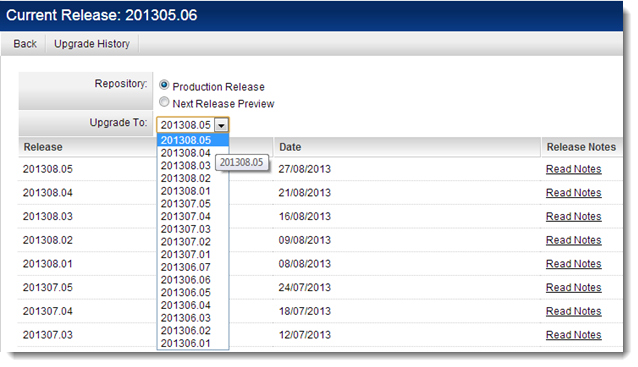
To initiate a manual upgrade, you must first be logged into SmartSimple as a Global User Administrator on the root instance of the server (typically the only instance of SmartSimple on the server). The Upgrade page can be accessed by navigating to the Upgrade tab at the top of the Global Settings page.
From there, you may select the release package(s) you wish to install on the server. The Production Release list includes only final release packages that have been deployed to production environments.
Once the Apply Upgrade button is clicked, all packages up to and including the selected package will be applied sequentially. After several minutes, the server will restart. Any users logged into the server will be disconnected and shown a message indicating that SmartSimple is currently unreachable.
At this point, you will need to refresh your browser and log in to the SmartSimple interface again.